Done, It's time, Planned, Estimated
The four tabs in To plan that sort your things by their date, and what each thing tells you: whether it's time, the date to keep to, the appointment to book.
At the top of To plan, four tabs sort your things by their date, in time order: what's done, what it's time for, what you've planned, and what TimeAcappella estimates. Each thing is in only one of them. The app opens on “It's time”, and a sentence under the tabs reminds you what the open tab holds.
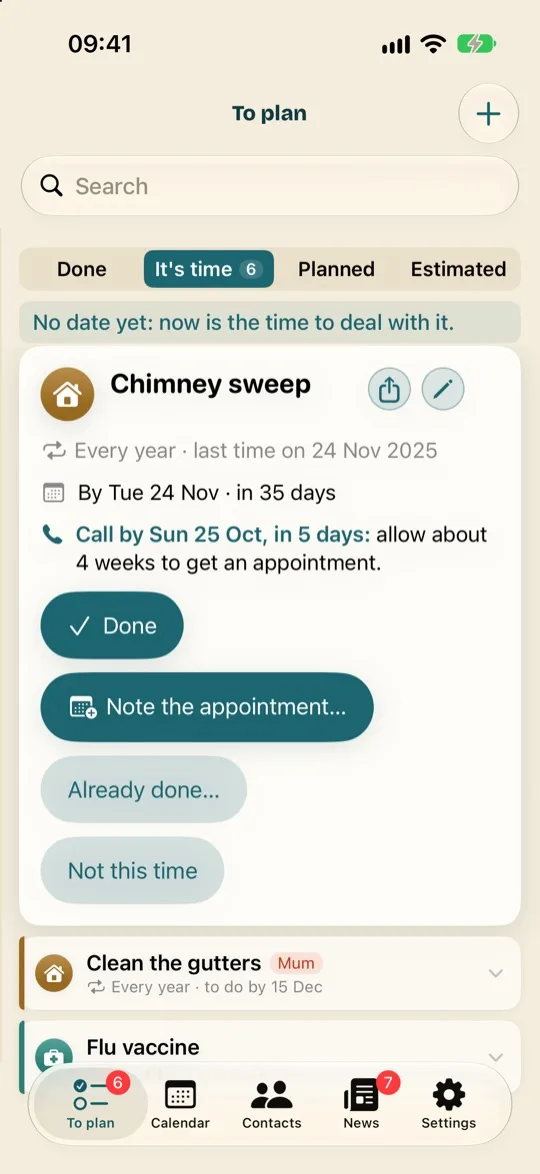
It's time
“No date yet: now is the time to deal with it.” Tap a thing to open it out: it shows how long you have, what's left to do, and its buttons. What a thing tells you:
- “It's time”: you can do it now.
- “To call”: you need to book an appointment. Open it out and it shows the last day to call, allowing for the time it takes to get the appointment. See Book an appointment.
- “by 30 Oct”: the date to keep to.
- “Due since 15 Oct”, with a small clock icon: the date has passed. The thing is waiting for you, and the app keeps reminding you about it.
- ↻ in front of how often it comes round (“↻ Every year”): it comes round again. “Once” next to its title: it only happens once.
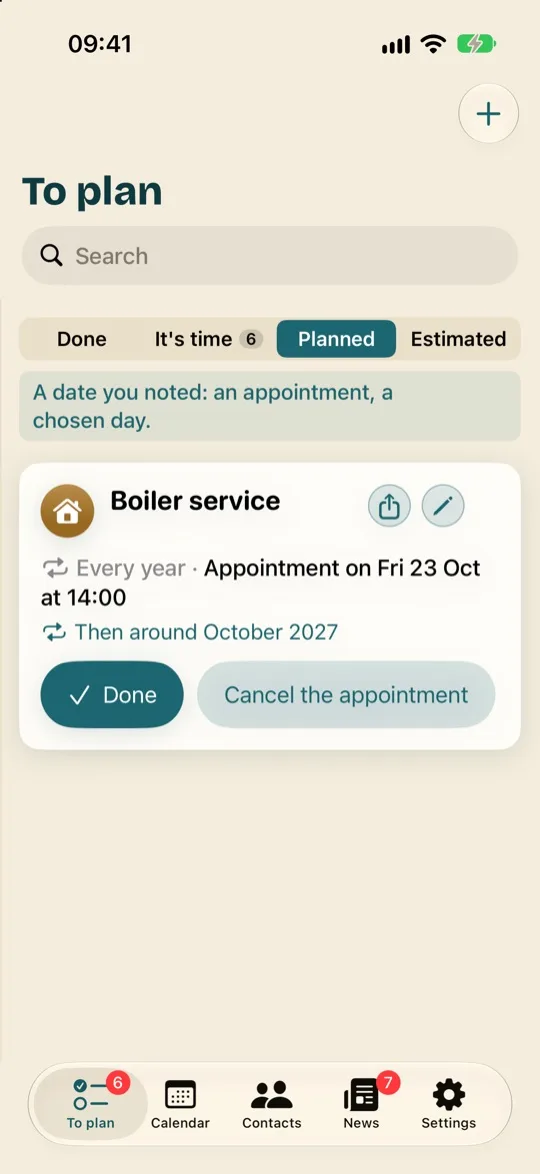
Planned
“A date you noted: an appointment, a chosen day.” The appointments you've booked and the tasks you've fitted into your week, the nearest first. Once their time has passed, they count as done: they move to “Done”, and the thing starts again for next time. See Book an appointment and Choose the day for a task.
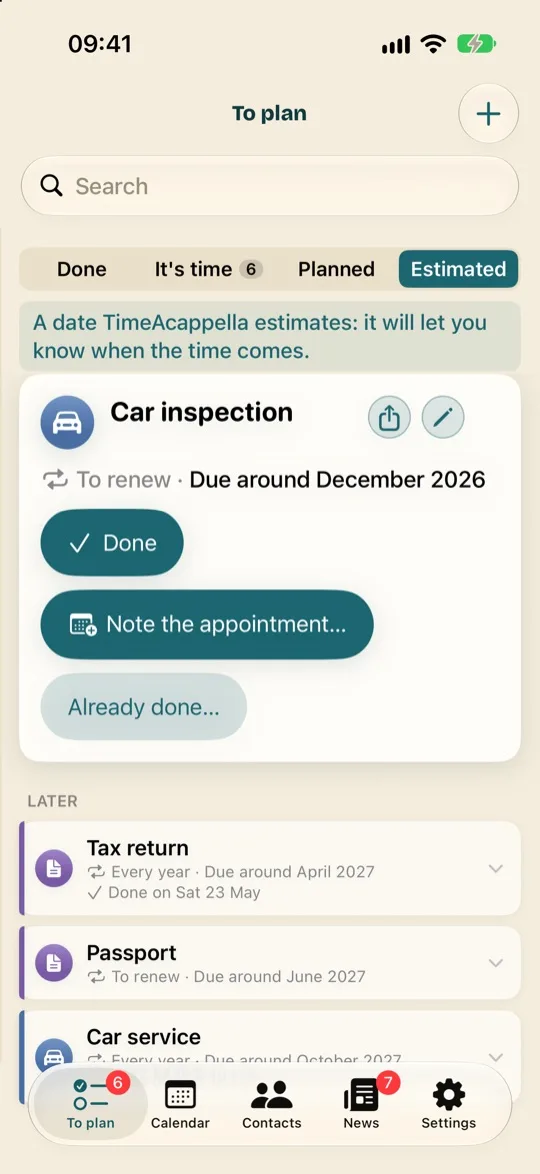
Estimated
“A date TimeAcappella estimates: it will let you know when the time comes.” The things it isn't time for yet, grouped under “Coming up”, “This quarter” and “Later”, with their rough date: “Due around December 2026”. When the time comes, the thing moves to “It's time”, and the app lets you know.
Done
“A past date: it's done.” What you've done over the last twelve months, most recent first, along with the appointments and fitted-in tasks whose time has passed. Marked something as done by mistake? Tap its line, then “Not done”: see Say it's done.
On a computer or an iPad
The tabs are next to the calendar, or below it on an iPad held upright. Choosing a thing in the calendar doesn't switch tabs: the tab that holds it is outlined, and a banner at the bottom tells you where it is. Tap the banner to see it there. After you do something that moves it, the app shows it to you where it has ended up.
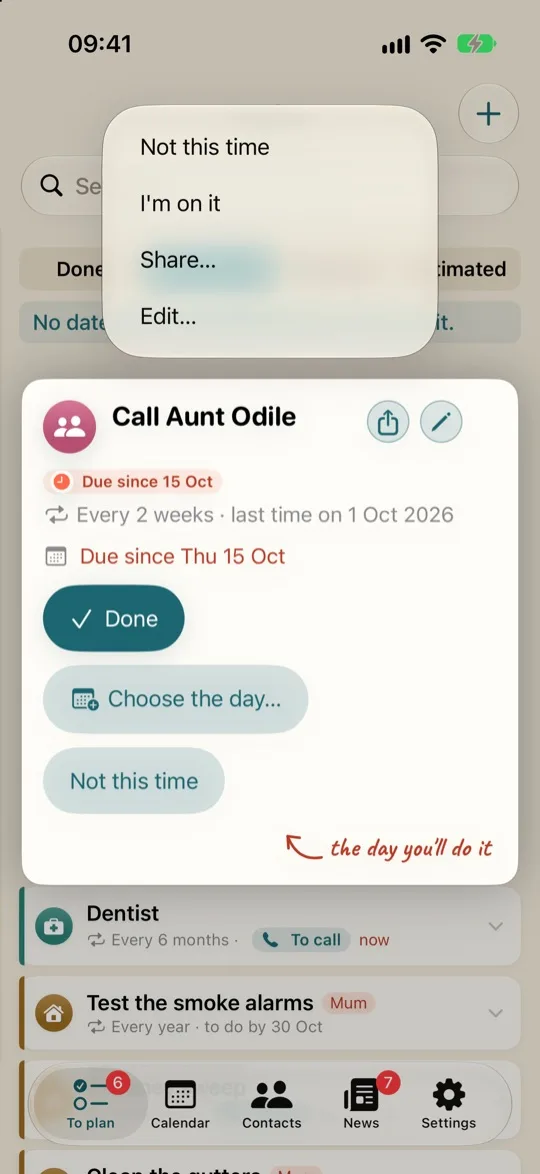
A thing's menu
A long press on a thing opens its menu. It's a shortcut: everything in it is also on the opened-out thing, or in its details. Among other things, you'll find:
- “I'm on it” marks it with a bookmark: it moves to the top of the lists while you deal with it. Nothing else changes, neither its date nor its reminders.
- “Not this time” lets it go by once. See Say it's done.
- “Share…” sends it to a loved one. See Share a thing.
- “Edit…” opens its details. See Edit or delete a thing.