
Day, month, year
The calendar's three views, the “The right moment” strip where your things to plan are waiting, and what the hours show.
The Calendar tab shows your calendar and your things to plan together. Use the selector at the top to switch between day, month and year. “Today” takes you back to today. It stays greyed out while today is on screen.
Day
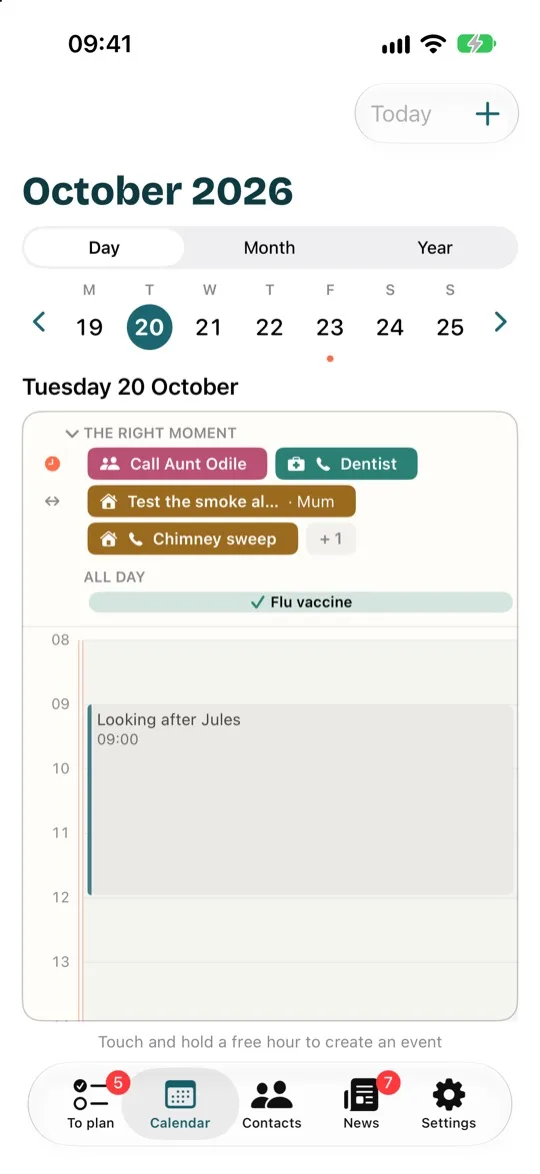
The days of the week are at the top. Tap one to go to it, or use the arrows to change week. Below them, the “The right moment” strip shows the things it's time for on that day. Tap one to open it. Then come the hours of the day, with your appointments and the events in your calendar: see In the hours.
The “The right moment” strip
Above the hours, in the day and the week alike, the strip “The right moment” shows the things to plan whose time has come. Here's what its icons mean:
- A small clock at the start of a line: things that are overdue. Their date has passed, and they're waiting for you to deal with them.
- Two arrows ↔ at the start of a line: these things have no set day. Do them whenever you like, in the next few days or later.
- A bar across a few days: these are the days when it's the right moment to do this thing. A small arrow at one end means it carries on before or after.
- A phone: you need to book an appointment. A bookmark: you said “I'm on it”. “Once” next to the title: something that only happens once.
- Paler: it's not quite time yet, or it's the next time it comes round.
- “+ 3” at the end of a line, or “… 3 more” underneath: there are 3 more things that don't fit here. Tap it to see the first one.
- Tap the title “The right moment” to shrink the strip to a single line of icons and see more hours. Tap it again to see everything.
Not sure about the clock or the arrows? Tap them and the app explains in a few words what they mean. On a computer, rest the mouse on an icon and it explains itself too.
In the hours
In the hours of the day or the week, your things to plan stand out from the events in your calendar, which stay grey:
- A light, puffy outline in the colour of its category: something planned, such as an appointment you've booked or a task you've fitted in.
- A solid block with a tick: something done, shown at the time it was done.
- The red line shows the current time. Once it has passed an appointment or a task, that counts as done: its puffy outline turns into a solid block.
- “All day”, above the hours: events that last the whole day, and things planned or done on a day without a set time.
Month
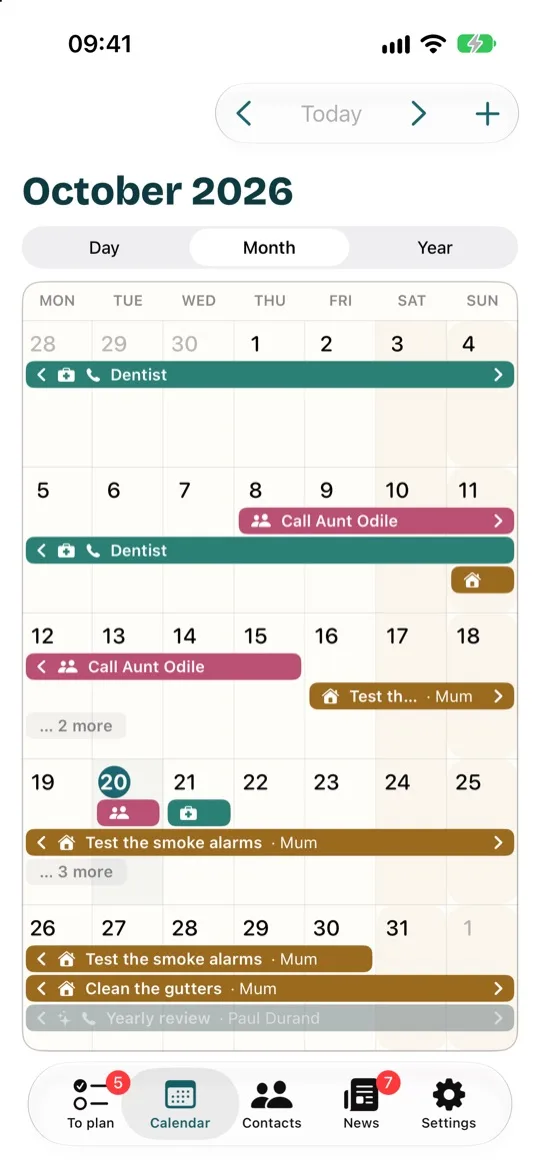
The whole month: each thing stretches across the days when it's the right moment to do it. “… 3 more” shows what doesn't fit in the box.
Year
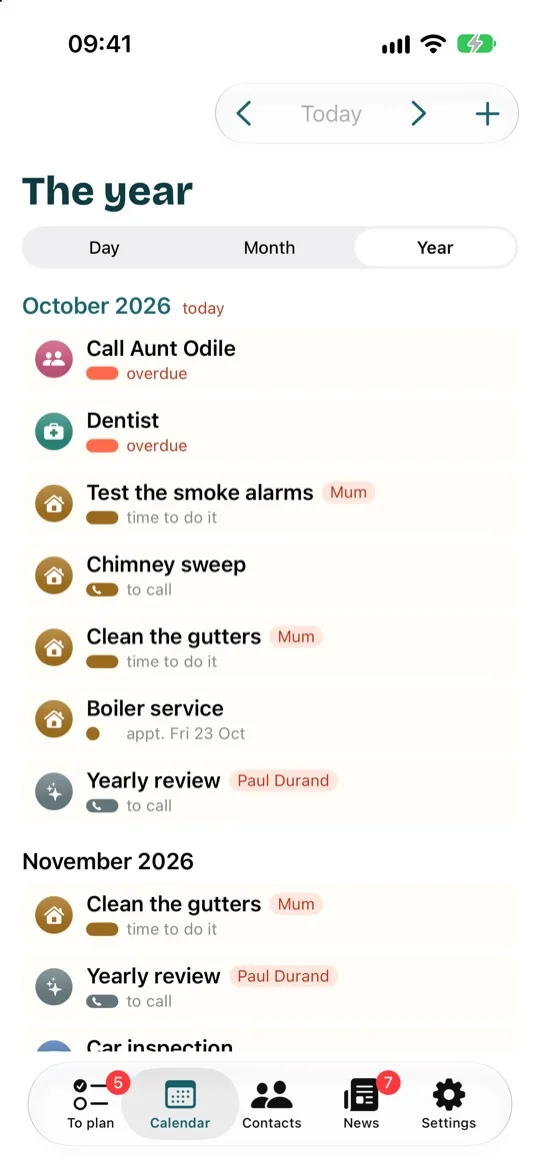
The year, month by month: who to call, what to do, what has been waiting since its date, the appointments booked, and the next times things come round. It's the view for seeing what's coming.
It also shows the events in your calendars that last two days or more, such as your holidays. That way you can see well ahead when you'll be away, so you don't plan anything during that time. On a computer or tablet, they appear above your things, under “Your calendars”. On a phone, they appear at the top of each month. Shorter events stay in the day, week and month views.