
Your calendar in TimeAcappella
See your usual calendar next to your things to plan, and choose where your appointments go.
TimeAcappella can show the calendar you already use, whether it's your iPhone's, Google's or your work one. That way, you can see when you're busy before you fit something in. It reads your calendar on your phone, without copying it anywhere else.
Giving access to your calendar
Until you give access, the Calendar tab shows “Your calendar in TimeAcappella” and a sample calendar. Tap “Continue”, then say yes when your iPhone asks.
If you said no, you can give access in your iPhone's Settings app: tap TimeAcappella, then Calendars.
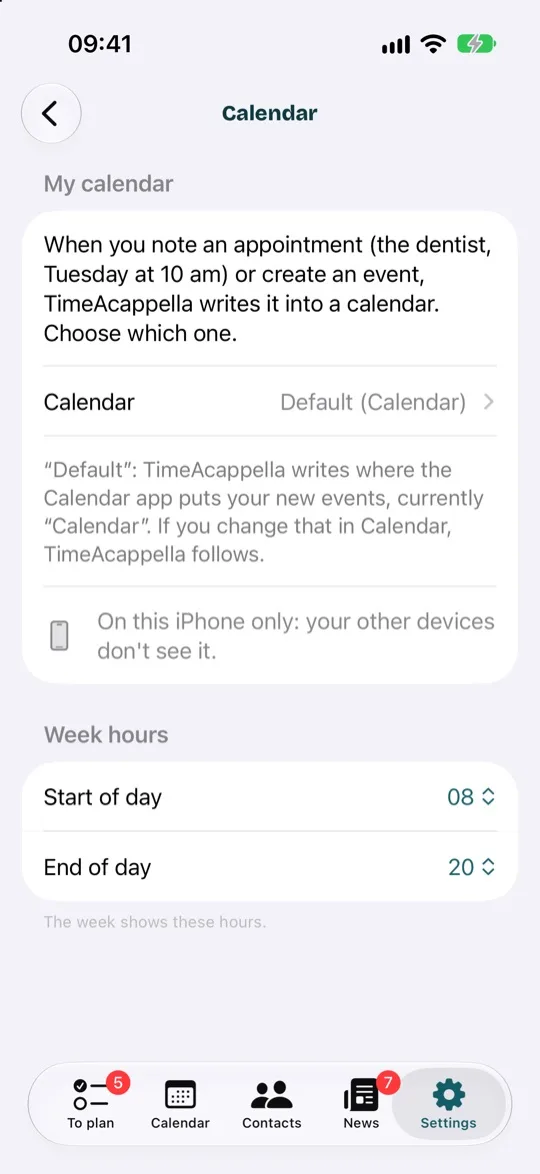
My calendar: where your appointments go
When you note down an appointment (the dentist, Tuesday at 10am) or the day you'll do something, TimeAcappella adds it to one of your calendars, “My calendar”. By default, this is the calendar where the Calendar app puts your new events, so you'll see the appointment wherever that calendar appears.
- Tap Settings, then Calendar.
- Under “My calendar”, tap “Calendar” and choose a different one.
The calendars shown
In Settings, “Calendars shown” lets you choose what appears: each account, then its calendars. Unticking a calendar doesn't delete anything. It stays in the Calendar app; TimeAcappella just stops showing it.
Week hours
“Start of day” and “End of day”, in Calendar, set the hours the calendar shows.