
Say it's done
Note that something is done, today or on another day, skip it once, and correct a mistake.
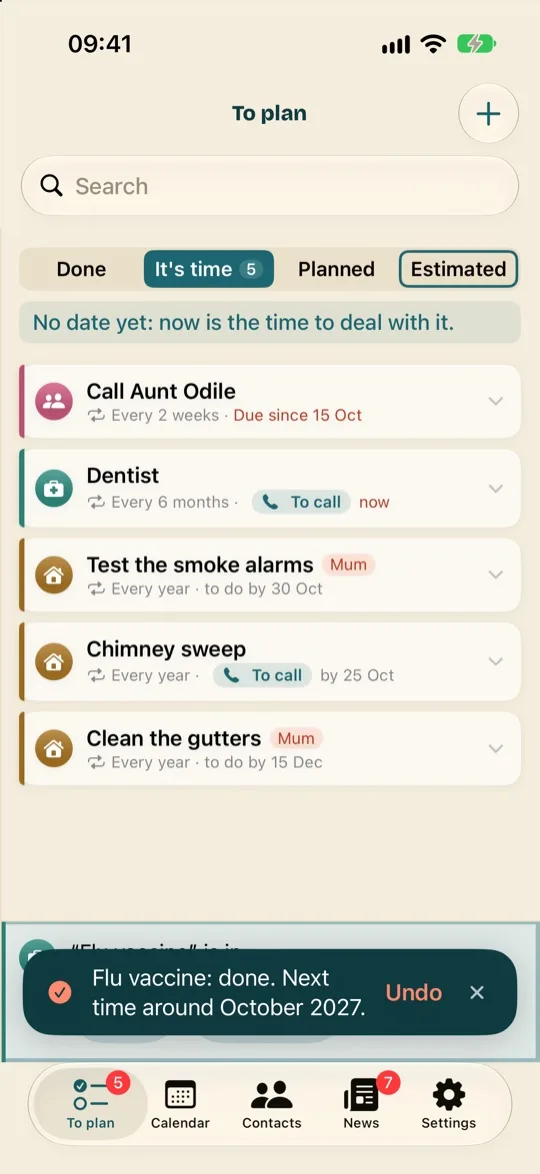
When it's done, say so: TimeAcappella notes the day, works out the next time from there, and stops reminding you.
- In To plan, tap the thing to open it.
- Tap “Done”.
- Confirm: the app tells you which day it will note.
A bubble tells you when the next time will be. Made a mistake? Tap “Undo” in the bubble.
It was another day
For a thing that needs an appointment, “Already done…” lets you choose the day it was done: the app starts again from that date.
To correct a day that's already noted, open the thing's details and change “When was the last time?”. See Edit or delete a thing.
Not this time
Something that comes round again can skip a turn: the vaccine you had somewhere else, the service put off for a year. Open the thing, then tap “Not this time”. The app moves on to the next time, without noting anything as done. The bubble also offers “Undo”.
After an appointment
There's nothing to do: as soon as its time has passed, an appointment counts as done on that day. The same goes for a task you've fitted into your week. If it didn't happen, say “Not done”. See After the appointment.
Something noted as done by mistake
In “Done”, tap its line, then tap “Not done”. Its tick disappears from the calendar, and the thing needs doing again. Tapping “Undo” in the bubble that appears puts it back. On a computer or an iPad, you can also drag its tick from the calendar to your tabs: see Drag and drop on the calendar.